7 Steps to Stream on Kick in 2025 (Without Breaking Your PC)
Your first Kick stream should not die because you forgot one box in OBS. Yet that is how it goes for most beginners. One wrong stream key, a bad server pick, or a bitrate that your internet cannot handle, and the whole thing looks broken.
In this guide, we’ll fix that. You will learn how to stream on Kick step by step, with the exact settings that keep your Kick stream stable, clear, and ready.
What You Need Before Streaming on Kick (Gear + Accounts Checklist)
Before you touch OBS, get the basics right. Most “Kick is broken” issues are actually account settings, weak upload speed, or messy audio.
Kick Account + Channel Setup
Your Kick account is the first filter new viewers use before they even watch.
-
Pick a username you can say out loud and keep long-term. Make it match your content, not a random meme.
-
Use the same name, colors, and vibe across your Kick account and other streaming platforms.
-
Upload a profile picture that reads clearly on a mobile device. Add a banner that makes sense for what you do on Kick.
-
Then write a short bio with your schedule, content style, and one or two links.
Minimum Streaming Gear Requirements
Before you touch OBS, make sure your basic setup is at least solid.
-
A camera is optional, but it can build trust. Use 1080p if possible, and place it at eye level. If the camera looks up, it feels awkward.
-
A USB microphone is enough if it is close. Keep it 6 to 10 inches from your mouth. Turn off “auto gain” if it pumps volume.
-
Lighting is the cheap upgrade. Face a window, or use a small ring light at 45 degrees.
-
For the internet, aim for a 6 Mbps minimum upload speed, and use Ethernet if you can.
Recommended Streaming Software
OBS Studio is always the clean default. It is free, stable, and gives real control over audio and scenes.
Streamlabs is fine if you want quick overlays, but it can be heavier on a weaker PC.
Kick connects through a custom RTMP setup. That means a streaming URL plus a stream key.
In OBS, set Service to Custom, then paste the server URL and stream key from the Kick creator dashboard.
Pick the closest server region to cut dropped frames. Never share the stream key. If it leaks, reset it in account settings.
How to Set Up OBS for Kick Streaming (Step by Step)
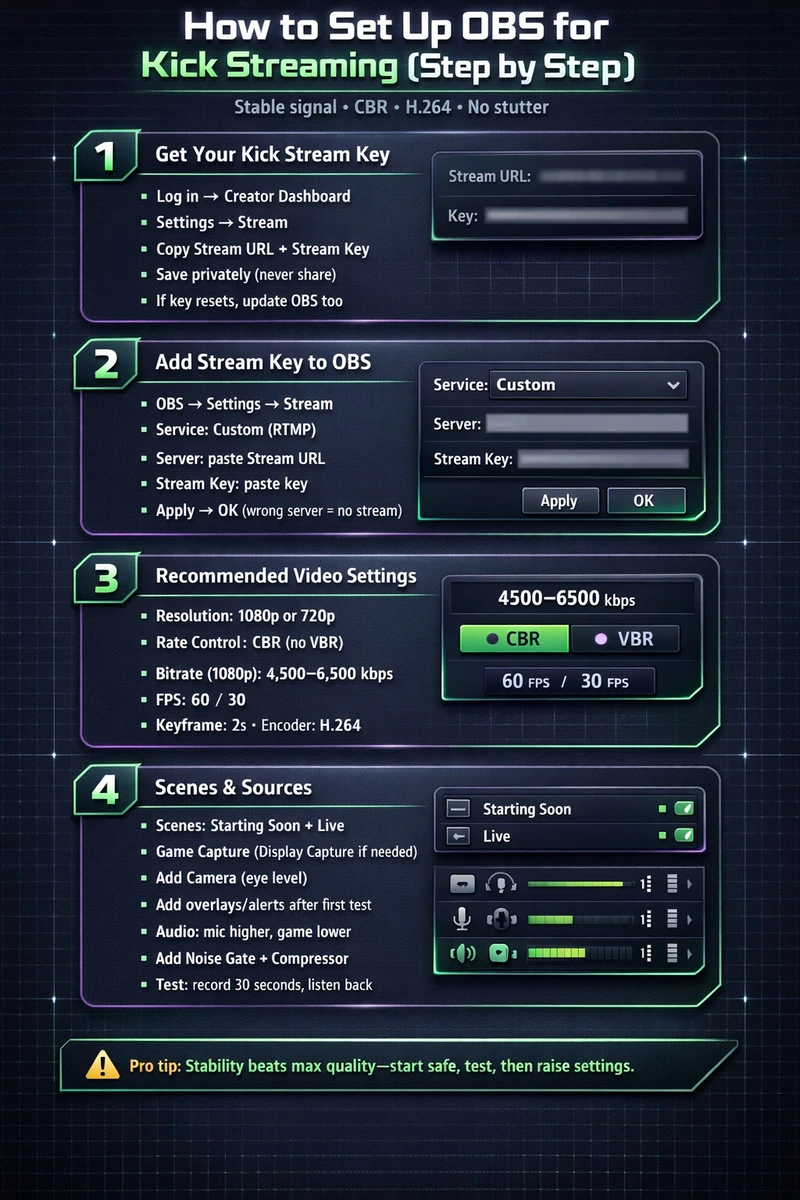
OBS gives full control over bitrate, encoder, and audio. That matters because Kick is picky. It wants a stable signal, CBR, and H.264.
When OBS is set right, the stream loads fast, looks sharp, and does not stutter. Here’s a step-by-step.
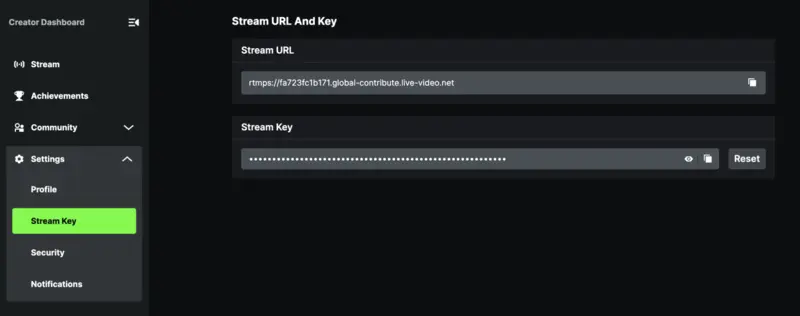
Step 1: Get Your Kick Stream Key
-
Log in to the Kick website on the account you will stream from.
-
Open the Kick creator dashboard.
-
Go to Settings, then Stream. Look for Stream URL and Key.
-
Copy the streaming URL and the stream key. Paste them into a notes app for now.
-
Never share the stream key. Anyone with it can go live on the channel.
Quick tip: If you ever reset the key, OBS must be updated too.
Step 2: Add Stream Key to OBS
-
Open OBS Studio.
-
Click Settings, then Stream.
-
Set Service to Custom. This is the custom RTMP setup.
-
Paste the streaming URL into the Server field.
-
Paste the stream key into the Stream Key field.
-
Click Apply, then OK.
Now OBS is connected. If the server field is wrong, the stream will not appear.
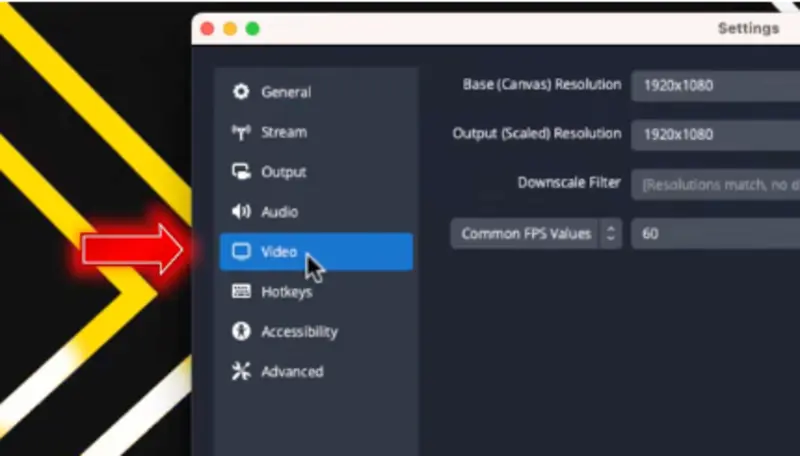
Step 3: Set Recommended Video Settings
-
Go to Settings, then Video. Pick 1920x1080 or 1280x720.
-
Use 1080p only if the PC can handle it without spikes.
-
Go to Settings, then Output. Use CBR. Kick does not support VBR.
-
Set bitrate to 4,500 to 6,500 kbps for 1080p. Go lower if the upload is shaky.
-
Set FPS to 60 for fast games. Use 30 for Just Chatting and IRL.
-
Set keyframe interval to 2 seconds. Keep encoder on H.264, like x264 or NVENC.
Also, check the upload speed first. Do not set the bitrate above what the internet can hold.
Step 4: Add Scenes and Sources
-
Create 2 scenes: Starting Soon and Live.
-
Add Game Capture for games. Use Display Capture only if needed.
-
Add a camera source if you use one. Frame it at eye level.
-
Add alerts and overlays only after the first test works.
-
Open the audio mixer. Set the mic near the top, game lower. Add a noise gate and compressor.
-
Do a 30-second recording and listen back before going live.
Important Kick Streaming Settings Most Beginners Get Wrong
Most Kick problems come from three mistakes. Bitrate is wrong, server is wrong, or audio is messy.
Bitrate & FPS Matching
If you run 1080p 60 FPS with a weak upload, you get stutter. If you push high FPS with low bitrate, it looks blocky.
Start stable, then upgrade. Also, Kick does not support VBR, so set Rate Control to CBR.
Choosing the Right Server
Use the Kick server URL given in your dashboard. If you use the wrong region, you can get dropped frames and poor stability. If you see “dropped frames” in OBS, this is often the cause.
Audio Mix Optimization
Audio is the fastest way to lose viewers.
-
Set mic peaks around -3 dB.
-
Keep game audio lower than voice.
-
Add a noise gate to kill keyboard noise.
-
Add a compressor so your voice stays even.
Kick also recommends a stereo at 48 kHz max.
Stream Title, Category & Tags
Kick discovery leans hard on category placement. So your stream title and category must match the content.
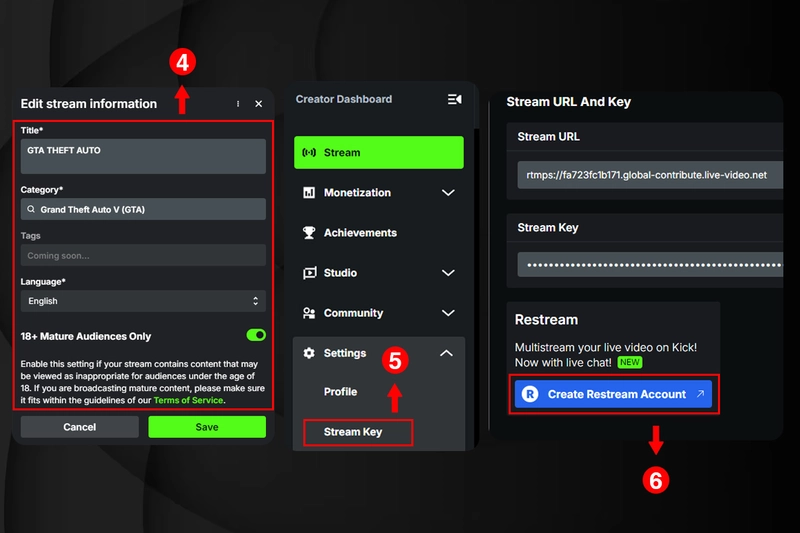
You also need to set details in the dashboard. Kick says if you do not set the stream title and category, the livestream may not start correctly.
Going Live on Kick: First Stream Checklist
Your first Kick stream won’t be perfect, and it shouldn’t be. It’s a quick safety run.
Run a Local Test Stream
Do a local recording test in OBS first. Check audio balance, scene switches, and CPU usage. Then, do a short private test if possible. Watch for dropped frames and encoding overload.
Start Your Stream on Kick
Open the Kick creator dashboard and set Kick stream details first. Click “Edit Stream Info” and confirm the stream title and category.
Then press “Start Streaming” in OBS. When you are live, test chat and audio.
When you are done, hit “Stop Streaming” in OBS. Kick will show an offline banner and save the replay.
Announce Your Stream
Post a fast notice where people already follow you. Discord, TikTok, IG Stories, and X all work. Don’t spam, just give a reason to click.
\Want to avoid an empty stream during testing? ViewBotter can help you rehearse pacing with simulated activity, so your stream does not feel dead while you fix settings.
Growth Strategies for Kick (What Actually Works in 2026)
Kick has lower competition than other streaming platforms, so if you’re a small creator, you can climb much faster.
That does not mean Kick is “free growth.” You still need the basics that make viewers stay. We have a full guide on how to grow on Kick, but here are a few quick points:
-
Stream at the same time, so people learn your schedule.
-
Pick one main content lane, so your audience knows why to return.
-
Talk like someone is there, even when chat is quiet.
-
Use simple on-screen goals, so viewers know what is happening.
-
Clip moments for short-form, since Kick discovery is still growing.
Kick Partner Requirements: What to Aim For
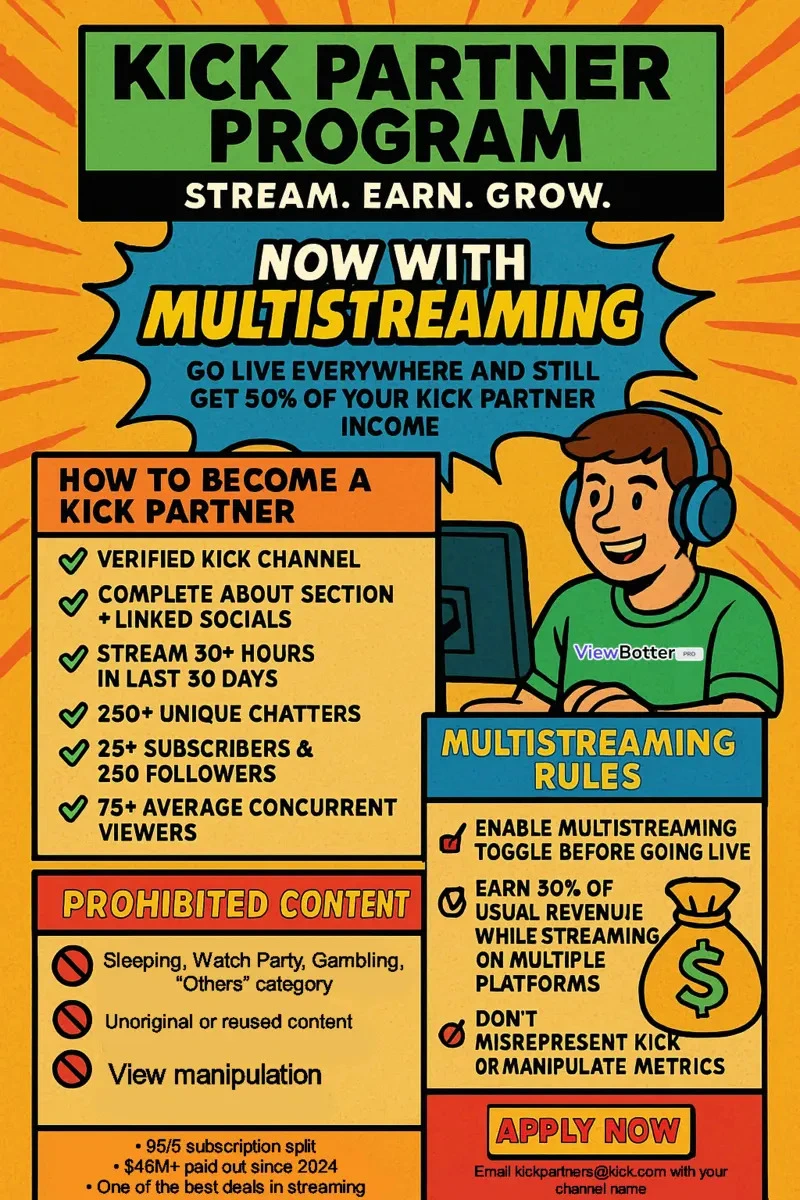
Kick Partner is the “serious creator” tier on Kick. The exact requirements are changing almost every month, but in general, you’ll need:
-
Have a verified KICK channel
-
Complete your About section
-
Link your social media profiles
-
Have 30+ hours streamed in the last month
-
250+ unique chatters in the last month
-
At least 25 active subscribers
-
250+ followers
-
An average of 75 concurrent viewers
These are just the requirements to be checked. You will need to make sure a lot of other things are in their place. We cover everything on how to become a Kick partner in our other guide.
Common Kick Streaming Problems + Fixes
Most first-stream problems will feel like “Kick is broken,” but it is usually one of these settings.
Lag or Encoding Overload
-
Problem: OBS says “Encoding overloaded” or the stream stutters.
-
Fix: Lower bitrate by 1,000 kbps steps until stable. Kick supports up to 8,000 kbps, but your upload may not. If you have NVIDIA, try NVENC H.264. If the CPU is strong, use x264 with a faster preset.
Audio Out of Sync
-
Problem: Voice lags behind video, or game audio drifts.
-
Fix: Add a sync offset to your mic in OBS Advanced Audio Properties. Also, try disabling “Use Device Timestamps” if you see drift issues.
Stream Not Showing Up on Kick
-
Problem: OBS says live, but the Kick stream is not visible.
-
Fix: Recheck the stream key and streaming URL in account settings. Kick notes that missing stream title and category can cause start issues, so always edit stream info first. Also, check the firewall rules if nothing connects. If you reset your stream key, update OBS right away.
Final Tips for Kick Streamers + How ViewBotter Can Help You
Kick is still one of the easiest places to get noticed, mainly because the category lists are not as packed yet.
But the platform will not save a messy stream. Get OBS right once, and stop touching settings every day. A stable 720p stream with clean audio beats a laggy 1080p stream every time.
Treat consistency like a promise. Go live on the same days, at the same hours, with the same kind of content, so people learn your routine and come back.
The first minutes matter most on Kick. If the stream starts empty, most new viewers bounce. That is where ViewBotter helps. Use ViewerBot, ChatBot, and FollowBot to create early momentum and stronger social proof.
FAQ
Is Kick good for beginner streamers?
Yes. Kick is less crowded than Twitch, so small channels get seen faster. A steady schedule matters more than perfection.
Is Kick safe to stream on?
It can be. Use chat filters, add moderators early, and report issues fast. Kick also publishes creator safety guidance.
Do I need a strong PC to stream on Kick?
No. Start at 720p and 30 FPS, then scale up. Kick supports up to 1080p and 60 FPS.
Can I stream from console to Kick?
Not directly, in most cases. Use a capture card to a PC with OBS, then stream via Kick’s stream key.
Is Kick better than Twitch for growth?
Often, yes, early on. Twitch has more viewers, but heavier competition. Kick has more “breathing room” for new channels.
What bitrate is best for Kick?
Use CBR. For 1080p, try 4,500 to 6,500 kbps if your upload can hold it. Kick supports up to 8,000 kbps.
Does Kick support multi-streaming?
Yes. Kick talks about multistreaming openly as a creator strategy, and it is built into many streaming workflows.
Is Kick really paying $16 an hour?
Sometimes, for eligible creators in incentive programs. It is conditional, can change, and is never guaranteed income.
How many followers do you need on Kick to stream?
None, in general. You just need a Kick account and your stream key in the Creator Dashboard to go live.