How to Set Up Subs on Twitch in 2026
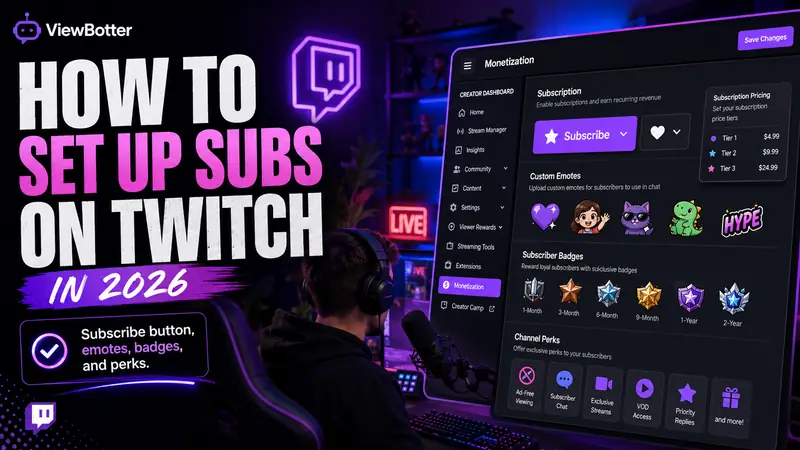
Setting up Twitch subs used to begin with the same annoying answer: become an Affiliate first.
That changed.
Twitch subscriptions are now available to eligible streamers worldwide, even if they have not reached Affiliate yet. You still need to complete monetization onboarding, and you will need Affiliate or Partner status before Twitch pays the money into your bank account.
The button is easier to unlock. Giving viewers a reason to press it is still your problem.
How Do You Set Up Subs on Twitch?
To set up subs on Twitch, open your Creator Dashboard and go to Monetization > Setup. Complete the first onboarding step, enter your legal information and accept the Monetized Streamer Agreement.
Once Twitch approves the setup, open Monetization > Subscriptions to manage your subscription settings, emotes, badges and subscriber benefits.
As of May 13, 2026, Twitch has made subscriptions, Bits, emotes, badges and Channel Points available to eligible streamers worldwide. Affiliate or Partner status is no longer required just to activate subscriptions.
It is still required to receive cash payouts.
Do You Need Twitch Affiliate to Get Subscribers?
No, not anymore.
A lot of guides still say you need Twitch Affiliate before the Subscribe button appears. That was true until Twitch expanded its Monetization for All program globally in May 2026.
There are now three relevant levels:
| Streamer status | Can receive subs? | Can withdraw earnings? | Main limitations |
|---|---|---|---|
| Regular streamer | No | No | Must complete monetization setup |
| Monetization setup complete | Yes | No | Earnings can be used through Spendable Balance |
| Affiliate or Partner | Yes | Yes | Must meet payout requirements |
Non-Affiliate streamers can earn money through subscriptions, but they cannot receive a normal payout. They can enroll in Spendable Balance and use eligible earnings to purchase Bits or gift subscriptions on Twitch.
Once you become an Affiliate, your existing earnings can become eligible for payout after you finish the required tax and payment setup.
How to Set Up Twitch Subs in 7 Steps
Do this from a desktop browser. Twitch buries enough settings without making you fight a mobile menu too.
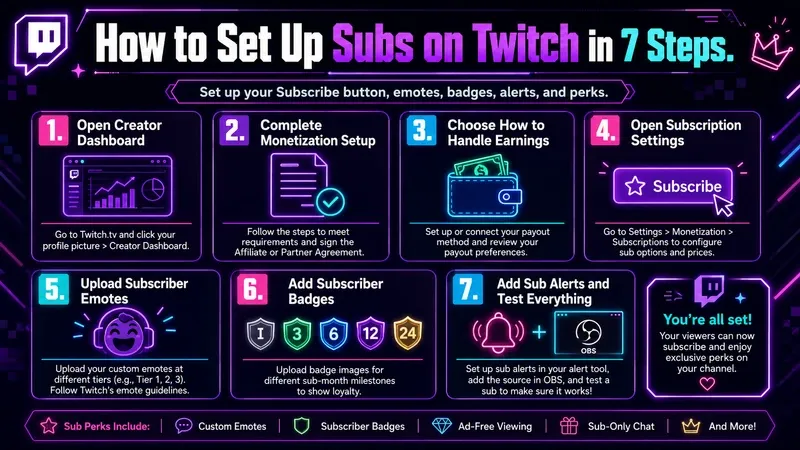
Step 1: Open Your Twitch Creator Dashboard
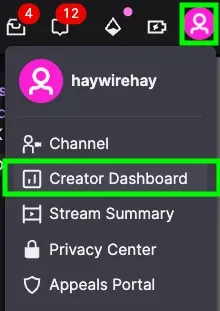
Log into Twitch and click your profile picture in the top-right corner.
Select Creator Dashboard.
In the left sidebar, open:
Monetization > Setup
If you already completed monetization onboarding, you should see additional sections for Subscriptions, Bits, Community and other creator tools.
Step 2: Complete the Monetized Streamer Agreement
The first setup stage asks for basic legal information.
You will need to enter:
- Your legal full name
- Your email address
- Your country of residence
- Your business name, if applicable
- Your agreement to Twitch’s Monetized Streamer Agreement
Use the same legal name that appears on your tax documents. Do not enter your Twitch username, gaming alias or the name your Discord friends have been calling you since 2018.
Streamers between 13 and 18 need a parent or legal guardian to accept the agreement for them.
Once everything is correct, click Submit. Completing this first stage unlocks tools such as subscriptions, Bits, emotes, badges and Channel Points.
Step 3: Decide How You Want to Handle Earnings
Twitch may show an optional second step for Spendable Balance.
Spendable Balance lets non-Affiliate streamers use their Twitch earnings to buy eligible products on Twitch, including Bits and gift subs. Completing this step may require tax interviews through Amazon Tax Central.
You do not need to enroll in Spendable Balance to activate your subscription tools.
However, you cannot withdraw subscription earnings as cash until you become a Twitch Affiliate or Partner.
Planning to reach Affiliate? Twitch currently requires:
- 25 followers
- 4 hours streamed
- Streams on 4 different days
- At least 3 average viewers on 4 stream days within 30 days
Twitch normally sends an Affiliate invitation after all four achievements are completed. Progress can take 24 to 48 hours to update inside the dashboard.
Step 4: Open Your Subscription Settings
Once onboarding is complete, return to your Creator Dashboard.
Go to:
Monetization > Subscriptions
This is the main control room for your Twitch sub setup.
Depending on your account level, you may be able to manage:
- Subscription names
- Subscriber emotes
- Subscriber badges
- Tier 2 and Tier 3 badge flair
- Ad-free viewing
- Subscriber benefits
- Higher-tier perks
Twitch subscriptions come in Tier 1, Tier 2 and Tier 3 options. Viewers can also use Prime subscriptions, purchase multi-month subs or gift subscriptions to other people.
Do not invent complicated tier names nobody understands.
“Goblin,” “Greater Goblin” and “Executive Goblin” can work if that is already your stream’s joke. Random fantasy lore created five minutes before launch will not convince anybody to buy Tier 3.
Step 5: Upload Subscriber Emotes
Subscriber emotes are usually the first benefit viewers check.
Go to:
Creator Dashboard > Viewer Rewards > Emotes > Subscriber Emotes
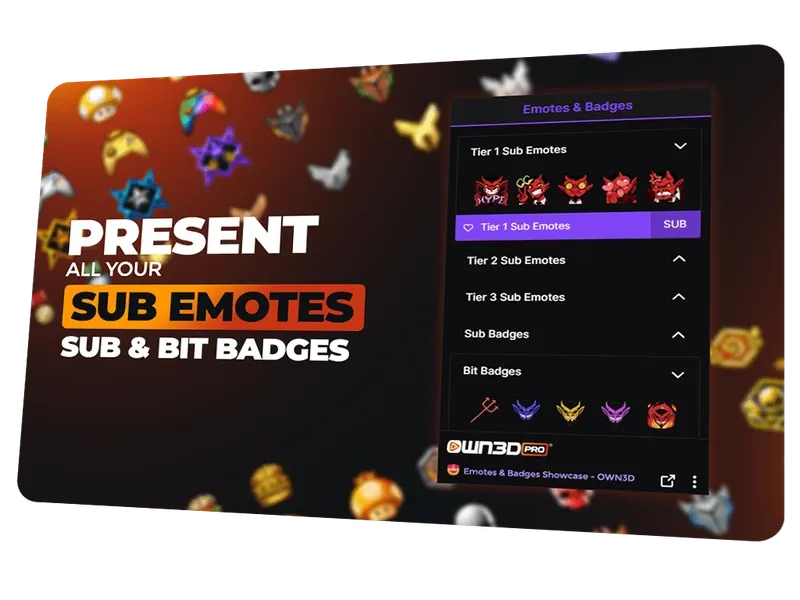
Choose the subscription tier, click the upload button and add your image.
Twitch’s automatic resizing tool accepts one square image:
- Between 112 x 112 and 4096 x 4096 pixels
- Under 1MB
- Uploaded with a clear emote code
Your emote code combines your channel prefix with the name you enter. Keep it short enough that people can actually remember it.
Most emotes require Twitch approval before viewers can use them. Instant Emote Upload is available to qualifying Affiliates and Partners in good standing.
Good first emotes include:
- A clear reaction face
- Your mascot laughing
- A rage emote
- A shocked emote
- An inside joke regular viewers already use
- A simple “GG” or celebration emote
Do not start with six tiny emotes containing unreadable sentences. Twitch chat is not a PowerPoint deck.
Non-Affiliate monetized streamers can offer emotes, but those emotes cannot be used outside their own channel. Affiliate and Partner status unlocks broader emote benefits.
Step 6: Add Subscriber Badges
Subscriber badges appear beside a subscriber’s name in your chat.
Go to:
Monetization > Subscriptions > Subscriber Badges
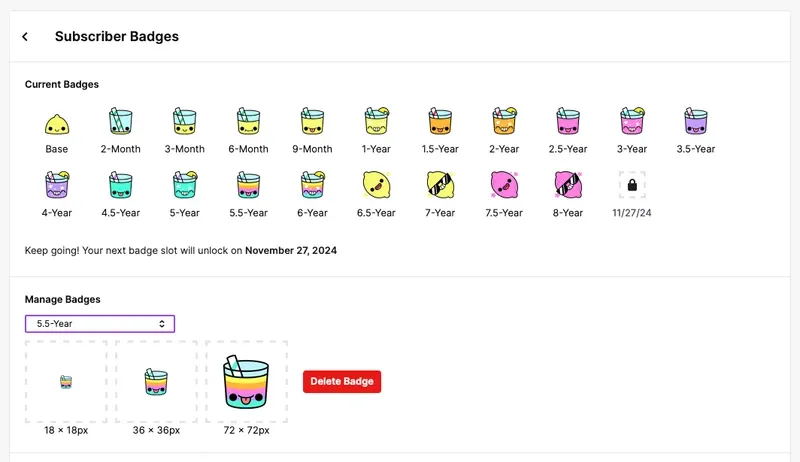
Twitch requires each badge in three sizes:
- 18 x 18 pixels
- 36 x 36 pixels
- 72 x 72 pixels
Files must be transparent PNGs under 25KB.
Unlike emotes, subscriber badges do not require manual approval before appearing in your channel. Twitch gives monetized channels badge slots that change as a subscriber’s total tenure grows.
Use a design that upgrades naturally.
For example:
| Subscription length | Badge idea |
|---|---|
| New subscriber | Wooden sword |
| 3 months | Stone sword |
| 6 months | Iron sword |
| 9 months | Diamond sword |
| 1 year | Glowing legendary sword |
The badge should become more impressive without turning into a blurry mess beside somebody’s username.
Step 7: Add Sub Alerts and Test Everything
The Twitch Subscribe button may work even when your stream alert does not.
Subscription alerts are normally controlled through an alert service such as Streamlabs or StreamElements.
The setup usually looks like this:
- Connect your Twitch account to the alert service.
- Enable subscription and resubscription alerts.
- Customize the image, sound and message.
- Copy the alert box URL.
- Add it to OBS as a Browser Source.
- Place the alert above your other overlay layers.
- Run a test alert.
This is similar to setting up Cheer alerts, which we cover in our guide to setting up Bits on Twitch.
Keep the alert quick.
A new Tier 1 sub does not need to trigger a 45-second anime transformation while you sit there waiting to continue the game.
Test:
- Alert sound
- Alert volume
- Subscriber username
- Gift sub alerts
- Resub messages
- Prime sub alerts
- OBS browser source
- Mobile and desktop Subscribe buttons
Ask a trusted viewer to check the subscription window from their account. You cannot properly judge your own subscriber checkout while logged into the channel that owns it.
What Benefits Should Twitch Subscribers Get?
The default answe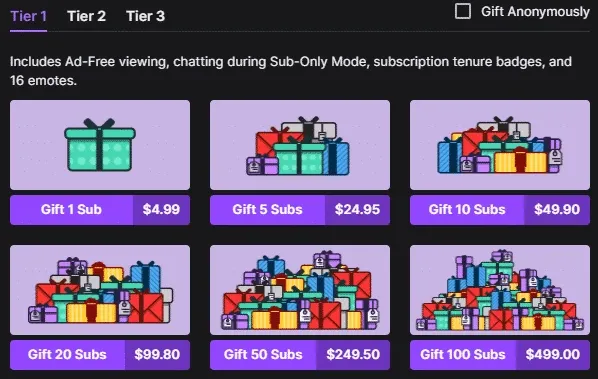 r is emotes and a badge.
That is enough to activate subs. It is not always enough to convince somebody to stay subscribed.
Pokimane once described Twitch viewers this way:
“People who are in the Twitch sphere are very, very active and heavy users of the platform.”
That regular viewing habit is what makes subscriptions work. People are not normally paying for one good stream. They are supporting a channel they return to constantly.
Useful subscriber benefits include:
Custom Emotes
Create emotes viewers will use during actual stream moments.
A perfectly designed mascot nobody types is less useful than a slightly stupid reaction face that appears 200 times every stream.
Loyalty Badges
Badges turn subscription length into visible status.
Regulars like being recognised as people who were there early, survived the scuffed microphone era and somehow stayed through every technical disaster.
Ad-Free Viewing
Monetized creators may be able to offer ad-free viewing as a subscriber benefit.
Keep in mind that enabling it can reduce the number of subscriber impressions counted toward ad revenue.
Subscriber Discord Roles
Connect Twitch to Discord so paying subscribers automatically receive a role, private channel access or special permissions.
Our guide explains how to link Twitch to Discord and enable subscriber syncing.
Give the private channel a reason to exist. An empty sub-only Discord room feels like paying admission to a locked storage cupboard.
Community Game Nights
Run occasional subscriber game nights, movie discussions, Q&As or community challenges.
Do not lock your entire personality behind a subscription. Give subscribers a bonus, not the only version of your channel worth watching.
Tier 2 and Tier 3 Perks
Higher tiers can include additional emotes and badge flair.
They can also include creator-defined perks, but keep them manageable. Promising weekly private coaching to every Tier 3 subscriber sounds great until eight people actually buy it.
How to Encourage Twitch Subs Without Begging
The Subscribe button is not a vending machine. Viewers need a reason to care.
Explain the Benefits Clearly
Add a channel panel showing what subscribers receive.
Mention:
- Available emotes
- Ad-free viewing
- Discord roles
- Community events
- Higher-tier rewards
Do not make viewers open four menus and interrogate a moderator to discover what their money gets them.
Mention Prime Subs Naturally
Prime subscriptions do not renew automatically, so viewers may forget they have one available.
A casual reminder works:
“If you have a Prime sub sitting unused and enjoy the stream, you can use it here.”
That sounds much better than pausing every match for the monthly Prime sermon.
Thank Subscribers Properly
Say their name, thank them and move on.
The best acknowledgment feels genuine without freezing the stream for five minutes. Gift sub bombs deserve more energy, but the content should keep moving.
Make Subscriber Moments Part of the Stream
Tie subscription alerts to something viewers enjoy:
- Add a name to a supporter wall
- Spin a small challenge wheel
- Add time to a community event
- Trigger a quick sound
- Unlock a temporary game rule
- Move a visible sub goal
The reward should create a moment for everybody, not only the person who paid.
How Much Do Twitch Streamers Make From Subs?
Twitch Affiliate subscriptions normally use a 50/50 net revenue split after applicable fees, taxes and other deductions.
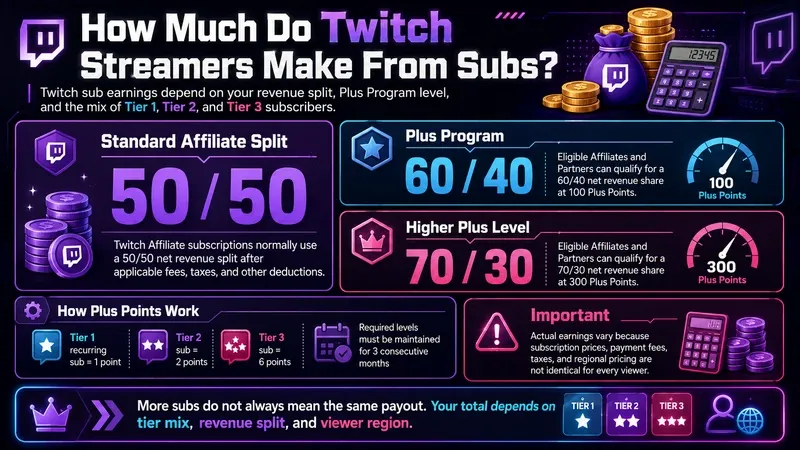
Eligible Affiliates and Partners can qualify for Twitch’s Plus Program:
- 60/40 net revenue share at 100 Plus Points
- 70/30 net revenue share at 300 Plus Points
The required Plus Points must be maintained for three consecutive months. Tier 1 recurring subs count as one point, Tier 2 subs count as two and Tier 3 subs count as six.
Actual earnings vary because subscription prices, payment fees, taxes and regional pricing are not identical for every viewer.
Our Twitch subscriber earnings breakdown explains how different tiers and revenue splits affect the total.
Why Is My Twitch Subscribe Button Not Showing?
Most missing sub buttons come back to onboarding.
Check these first:
You Have Not Completed Monetization Setup
Go to Creator Dashboard > Monetization > Setup and make sure Step 1 shows as complete.
You Did Not Accept the Agreement
Twitch requires you to open and accept the Monetized Streamer Agreement before subscription tools are enabled.
Your Account Is Not Eligible
Twitch says monetization tools are available to eligible streamers. Check the Monetization section for any account-specific notice or restriction.
You Are Checking Your Own Channel
Open the channel while logged out or ask somebody else to look. Channel owners do not see every viewer-facing purchase option in the same way.
The Dashboard Has Not Updated
Log out, clear the cache and check again later. Twitch achievement and monetization data do not always update instantly.
Your Affiliate Payout Setup Is Incomplete
Subscriptions may be enabled before Affiliate, but cash payouts require additional steps such as tax interviews, a payout method and Two-Factor Authentication.
Where ViewBotter Fits In
Setting up Twitch subs is mostly clicking menus.
Getting enough people into the stream to subscribe is the hard part.
The ViewBotter Twitch Viewer Bot helps create early viewer momentum so your channel does not sit buried at the bottom of a category. You control viewer delivery through the ViewBotter dashboard without downloading software.
The Twitch Chat Bot adds active chat accounts so real viewers do not arrive to a viewer count sitting above complete silence.
That early activity can help your stream look established while you work on the things that turn visitors into subscribers: better content, recognisable emotes, community jokes, regular streams and benefits people actually want.
You can try ViewBotter free before choosing a plan.
Frequently Asked Questions
Can You Get Twitch Subs Without Being an Affiliate?
Yes. Since May 2026, eligible streamers worldwide can complete monetization setup and enable subscriptions before reaching Affiliate. You still need Affiliate or Partner status to withdraw the earnings as a normal payout.
How Do I Get the Subscribe Button on Twitch?
Open Creator Dashboard, go to Monetization, select Setup and complete the Monetized Streamer Agreement. Once approved, Twitch should add the Subscribe button and subscription settings to your channel.
Where Are Twitch Subscription Settings?
Open Creator Dashboard > Monetization > Subscriptions. Subscriber emotes are also managed through Viewer Rewards > Emotes > Subscriber Emotes.
Can Viewers Subscribe With Amazon Prime?
Yes. Eligible Prime members can use a Prime channel subscription on a monetized Twitch channel. Prime subscriptions do not automatically renew, so viewers must choose a channel again when the benefit becomes available.
Do Twitch Emotes Go Live Immediately?
Not always. Subscriber emotes normally require manual approval. Affiliates and Partners who qualify for Instant Emote Upload can make new emotes available faster. Subscriber badges do not require the same approval process.
Can I Turn Off Ads for Twitch Subscribers?
Monetized creators may have an ad-free viewing option in their subscription settings. Enabling it means subscriber views will not contribute to the channel’s normal ad impressions.
How Much Does a Streamer Make From One Twitch Sub?
There is no fixed amount for every channel. Affiliate revenue commonly starts with a 50/50 net split, but taxes, processing costs, regional pricing and Plus Program eligibility can change the final amount.